Huidu HDPlayer is the free full-color asynchronous LED display control software developed by Shenzhen Huidu Technology Co., Ltd. (灰度科技). If you operate LED signs, digital billboards, or storefront displays powered by Huidu control cards, this guide covers everything field engineers ask about most: where to download the latest HDPlayer version, how to install it, what the default passwords are, how to configure WiFi and smart settings, and how to resolve common screen faults. Every password and procedure listed below is verified against Huidu’s official documentation and version notes.
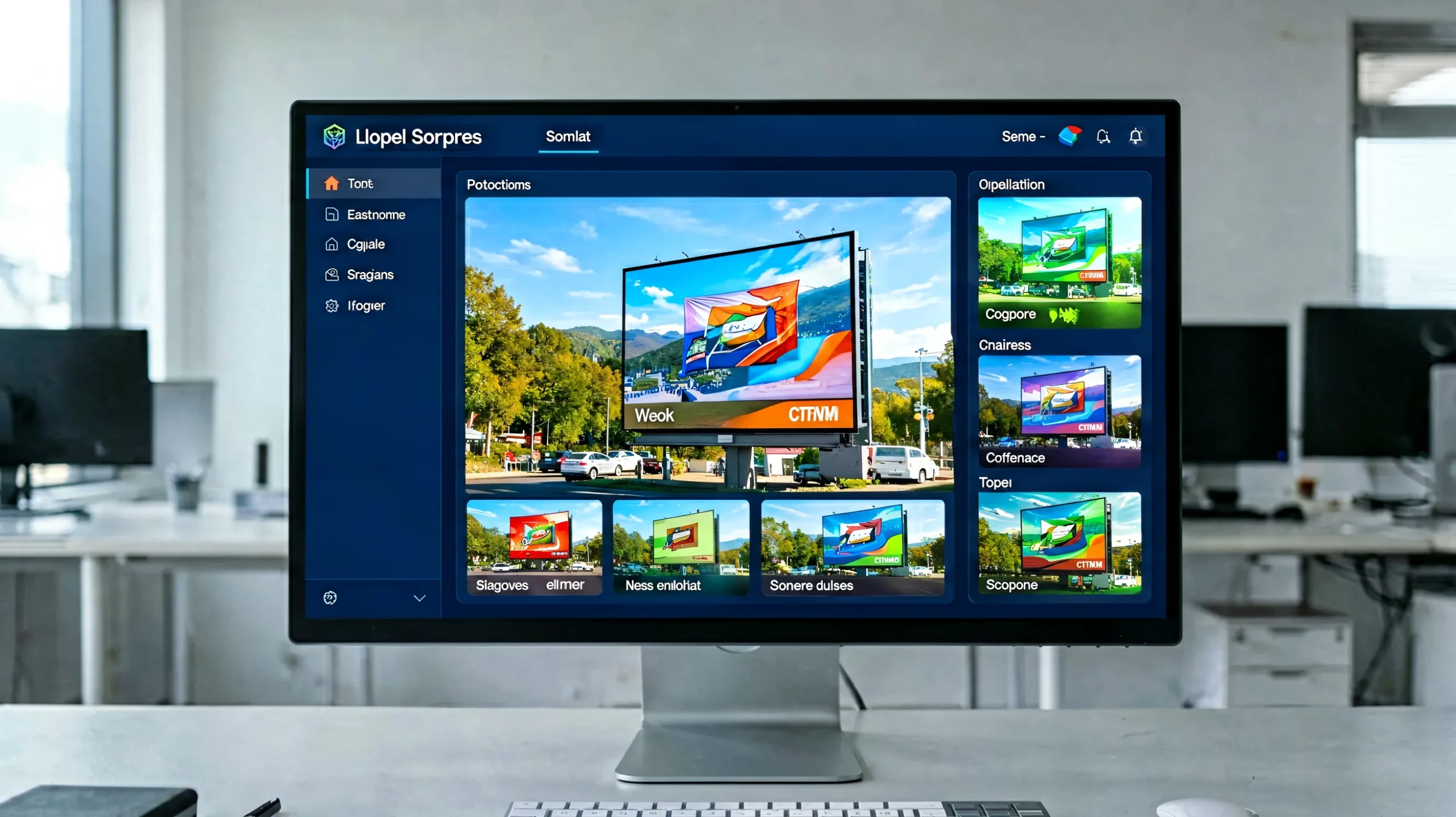
What Is Huidu HDPlayer?
HDPlayer is the flagship software in the Huidu ecosystem for full-color asynchronous control cards — the type of controllers that store content locally and keep playing it even without a computer connected. This differs from synchronous systems, which require a live video signal. If you are choosing between the two architectures, our guide on synchronous and asynchronous LED displays explains the trade-offs in detail, and what a Huidu control system is covers the full product line behind the software. To compare individual Huidu models, see our Huidu LED controller selection guide.
Which Control Cards Does HDPlayer Support?
HDPlayer is designed for Huidu’s full-color asynchronous controllers. The officially documented supported families include the A-series cards (A601, A602, A603, A30, A30+), the C-series (C10, C30), and the D-series (D10, D20, D30). The software is also used with Huidu’s newer WiFi-enabled control cards, such as the HD-C16C WiFi LED control card and the HD-A3 asynchronous controller, which field engineers typically pair with HDPlayer for program editing and network configuration.
What HDPlayer Does
- Program editing — text, 3D text, images, video, documents, clocks, and custom areas combined on one canvas and published to the screen.
- Hardware configuration — screen parameters, receiving card settings, and smart setting for new cabinets.
- Network management — LAN, WiFi, and cluster sending so one operator can push content to multiple displays.
- Device control — brightness, time correction, power on/off scheduling, screen testing, firmware updates, and cloud server settings.
How to Download and Install Huidu HDPlayer
The HDPlayer installer is distributed as a Windows executable (HDPlayer.x.x.x.x.exe). For a maintained list of the latest versions, visit Huidu’s official download page at hdwell.com or huidu.cn, or use our own Huidu software download center, which consolidates HDPlayer together with the rest of the software family — HDSet, HD2020 (single-color control cards), HDSign, and HDShow.
Installation Steps
- Download the installer from an official or verified source. Confirm the version number against Huidu’s release notes before deploying it to production signage.
- Run the installer and select the interface language. HDPlayer is available in multiple languages, including English.
- Follow the setup wizard: accept the installation directory or choose a custom path, then click Install.
- Launch HDPlayer after installation. On first run, the software will search the local network for connected Huidu controllers and display their device IDs automatically.
Note that HDPlayer’s feature set covers full-color asynchronous controllers. If your project uses single-color or dual-color cards, Huidu provides HD2020 for that hardware class — installing the correct tool for the card type avoids configuration mismatches.
Huidu HDPlayer Default Passwords and WiFi Password Explained
Password questions are the most common support topic for Huidu HDPlayer users — including the default software password, the hardware setting password, and the WiFi password broadcast by the controller. Here is the verified reference table.
Default Software and System Setting Password
The default password for HDPlayer’s software-side settings is 168 or 888. This applies to common setting and system setting dialogs. Huidu’s official tutorials confirm that the hardware setting password follows the same pair: 888 or 168.
Default WiFi Password of Huidu Controllers
When a Huidu controller with a WiFi module powers on, it creates its own wireless access point so a phone or PC can connect directly. The default WiFi password is 88888888, and some controller models use lc12345678 as the alternative. The controller’s SSID and password are also readable inside HDPlayer’s network or WiFi settings dialog when the controller is connected via LAN.
Password Quick Reference
| Setting | Default Password | Where It Is Used |
|---|---|---|
| Software / system setting | 168 or 888 | HDPlayer settings dialogs |
| Hardware setting | 888 or 168 | Screen parameter and smart setting entry |
| Controller WiFi access point | 88888888 (some models: lc12345678) | Direct phone-to-controller WiFi connection |
How to Reset a Forgotten Huidu Password
If a password has been changed and lost, Huidu’s official LEDArt app manual documents a hardware reset procedure: press and hold the controller’s reset button, power the controller on, and keep holding for about 10 seconds, then release. The password is restored to the default 88888888. Be aware that the official manual notes screen parameters may also be affected, so re-verify the screen configuration after a reset. If the screen shows the wrong layout or no picture afterward, re-apply the configuration file — the process in the next section covers this.
Screen Configuration: Smart Setting and Network Setup
After installation, HDPlayer needs the screen’s configuration data before it can drive the display correctly. This is where most first-time setup issues occur.
Smart Setting with Configuration Files
Smart setting generates a configuration file (ssx) that maps the controller’s output to the physical LED modules — resolution, scan mode, and data flow. The full configuration workflow is documented in our Huidu HDSet software guide. Once generated, the same file can be loaded onto identical cabinets. If you replace a receiving card or lose the original configuration, reloading a saved configuration file restores the screen without re-running the mapping process from scratch. The video below demonstrates how to reload a saved LED screen configuration file onto a receiving card.
Network Settings: LAN, WiFi, and Cluster Sending
HDPlayer supports three common connection modes:
- LAN — controller and PC on the same network; HDPlayer auto-detects the controller ID.
- WiFi — the controller runs as an access point or joins an existing wireless network; used with phone-based management and WiFi cards.
- Cluster sending — one program broadcast to multiple controllers on the network simultaneously, used for multi-screen sites.
For a broader walkthrough of controller-level setup across brands, see our LED display controller setup guide.
Sending Programs and U-Disk Updates
Programs reach the controller either over the network (cluster or direct sending) or physically via a U-disk: export the program from HDPlayer to the U-disk, insert it into the controller’s USB port, and the controller imports and plays it. Huidu controllers also support using U-disk capacity to extend storage for larger playlists. In environments where the display sits on an isolated network — common for outdoor billboards — the U-disk workflow remains the standard update method.
Managing Screens Remotely with the LEDArt App
LEDArt is Huidu’s official mobile app for Android and iOS. It connects to the controller over WiFi and covers the most frequent field tasks: program preview, brightness adjustment, time sync, and — notably — wireless smart setting, so a technician can configure a screen from a phone without a laptop.
The app is also the fastest way to change the controller’s WiFi password after installation. Because the default password is public knowledge, changing it on every new installation is a basic security step, just as changing the HDPlayer software password (168/888) prevents unauthorized program changes on shared PCs.

Firmware Upgrades and Troubleshooting
Safe Firmware Update Steps
HDPlayer includes a firmware update function for Huidu controllers. Field best practice before upgrading:
- Read back the current configuration file and keep a copy.
- Download the firmware from Huidu’s official channel and confirm it matches the controller model.
- Update over a stable connection (prefer LAN over WiFi). Do not power off the controller during the write process.
- After the update, verify the program playback, brightness, and network settings.
Common Problems and How to Resolve Them
- Screen not responding to HDPlayer — check that the PC and controller are on the same subnet, the controller appears in HDPlayer’s device list, and no firewall blocks the software’s discovery ports.
- No picture or wrong layout — the most common cause is a missing or incorrect configuration file. Reload the saved ssx/rcfgx file or re-run smart setting.
- Wrong colors or partial display — verify the receiving card parameters and the data cable order; a single swapped HUB port will show as a misplaced image region.
- Cannot connect to controller WiFi — verify the password against the table above (88888888 / lc12345678), then change it once connected.
- Content stops updating — confirm the network route, or fall back to U-disk update to isolate whether the fault is in the network or the controller.
For a systematic fault-finding path across all Huidu hardware, see our Huidu troubleshooting guide. When display faults persist, reading back the receiving card program helps identify whether the card’s parameters were overwritten. The video below demonstrates the read-back and update procedure used in exactly this situation.
Huidu HDPlayer in a Complete LED Display System
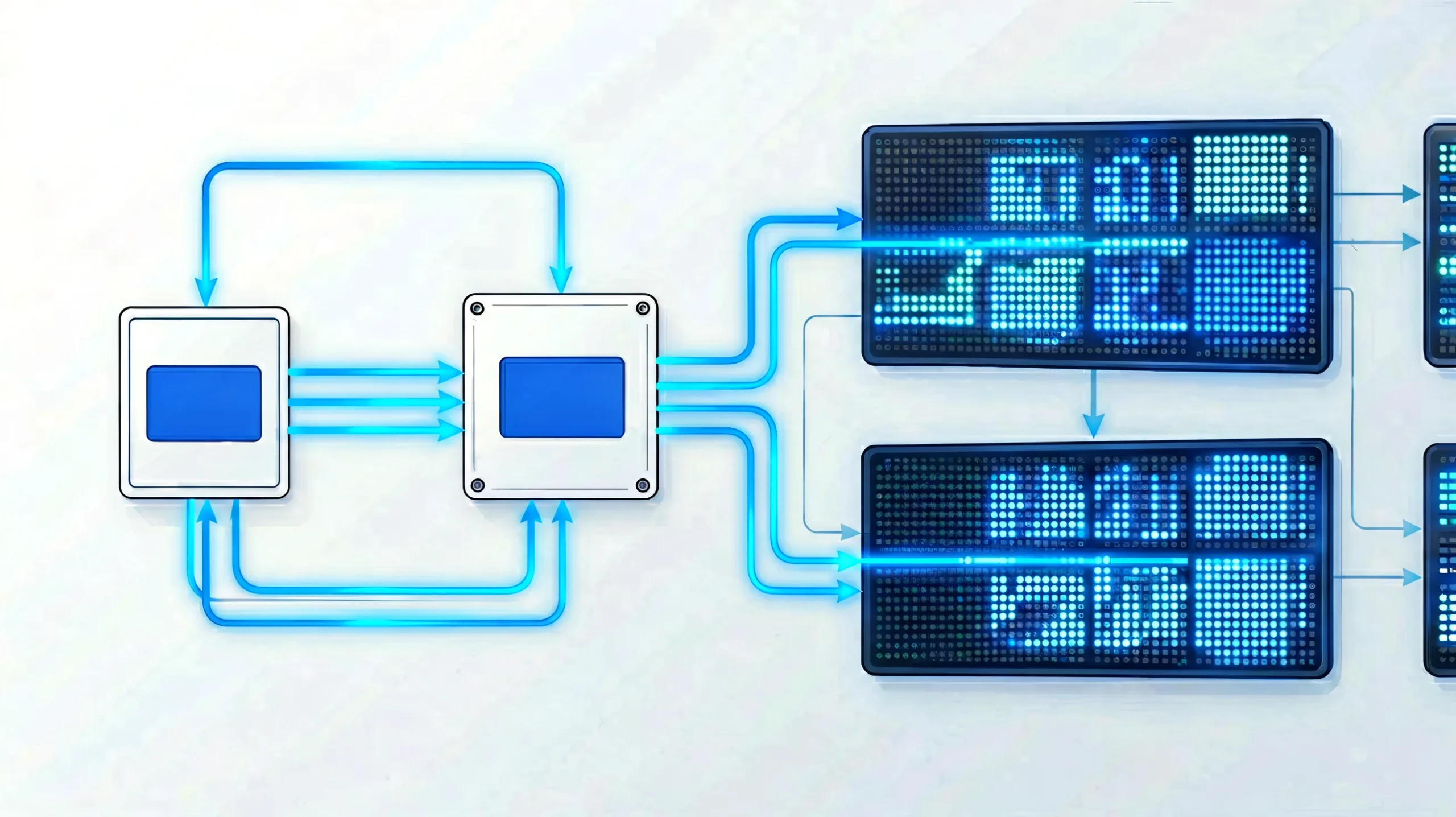
HDPlayer is one layer in a complete LED display system: the control card stores and plays content, the receiving card fans the signal out across modules, and the panels, power supplies, and cabinet structure deliver the image. Understanding how the software layer connects to the hardware layer matters when integrating a screen for a customer project, because most “software problems” reported by end users turn out to be configuration or cabling issues at the hardware boundary.
The installation video below shows the full workflow — from cabinet assembly to control system setup and final calibration — which is the process context HDPlayer operates in.
Choosing Huidu for Your Project
Huidu’s asynchronous controllers are widely used for fixed signage projects — storefront displays, pole screens, banners, and distributed advertising networks — because the content plays autonomously without a PC on site, and the hardware is priced for volume deployments. For rental or broadcast-grade synchronous applications, brands like NovaStar remain the common choice; our NovaStar vs Colorlight comparison covers that side of the market. For the direct Huidu-vs-NovaStar decision framework, see our Huidu vs NovaStar comparison. The right decision starts with the project type: asynchronous for independent playback, synchronous for live video.
As an LED screen manufacturer that ships displays with Huidu, NovaStar, and Colorlight control systems integrated, LEGIDATECH provides HDPlayer configuration support alongside every project — from controller selection and pre-configured files to remote troubleshooting after installation.
FAQ: Huidu HDPlayer Common Questions
What is the default password for the Huidu HD Player?
The default password for HDPlayer’s software and system settings is 168 or 888.
What software is used for HUIDU controllers?
HDPlayer is the software for full-color asynchronous Huidu controllers. The wider family includes HDSet, HD2020 (single-color cards), HDSign, and HDShow, plus the LEDArt mobile app.
What is the default WiFi password for Huidu LED controllers?
The default WiFi password is 88888888; some controller models use lc12345678 instead. Change it after the first connection.
How do I reset a forgotten Huidu controller password?
Hold the controller’s reset button while powering on, keep holding for about 10 seconds, then release. The password returns to the default 88888888. Re-verify screen parameters afterward.
Is Huidu HDPlayer free to download?
Yes. HDPlayer and the rest of the Huidu software family are provided free of charge through Huidu’s official download channels and verified reseller download centers.
Which control cards does HDPlayer support?
Full-color asynchronous Huidu cards, including the A-series (A601/A602/A603, A30/30+), C-series (C10/C30), D-series (D10/D20/D30), and newer WiFi cards such as the HD-C16C.
How do I update Huidu controller firmware?
Through HDPlayer’s firmware update function, using firmware matched to the controller model, over a stable LAN connection. Back up the configuration file first and do not interrupt power during the write.
Is there a LedArt app available for PC?
LEDArt is a mobile app for Android and iOS. On a PC, the equivalent functions are covered by HDPlayer itself, including smart setting and network management.
What are the benefits of HUIDU controllers?
Autonomous playback without an on-site PC, WiFi and cluster management, U-disk updates for isolated networks, and a complete free software toolchain — a cost-efficient fit for fixed and distributed signage.
Can I control multiple LED screens with one HDPlayer?
Yes. HDPlayer supports cluster sending, which publishes one program to multiple controllers on the network, and the XiaoHui cloud platform adds remote management for distributed displays across sites.
Conclusion
Huidu HDPlayer is the control hub for Huidu-based asynchronous LED displays: download it from a verified source, install it on a Windows workstation, and keep the default password table above at hand during commissioning — the 168/888 software passwords, the 88888888 WiFi default, and the 10-second button reset resolve the majority of field issues. Pair it with smart setting configuration files, LEDArt for on-site mobile control, and a U-disk or cluster workflow for content updates, and a Huidu-controlled screen becomes a self-contained signage system. If you are planning a new LED display project and need HDPlayer pre-configured or engineering support, contact LED screen manufacturer LEGIDATECH — we integrate Huidu control systems into factory-built displays with configuration files, wiring diagrams, and after-sales support included.
Explore the Huidu LED Control System Hub
For the complete Huidu picture — product categories, comparison table, HD-VP series guide, applications, selection logic and FAQs — visit the Huidu LED Control System: Complete Guide & Product Hub.