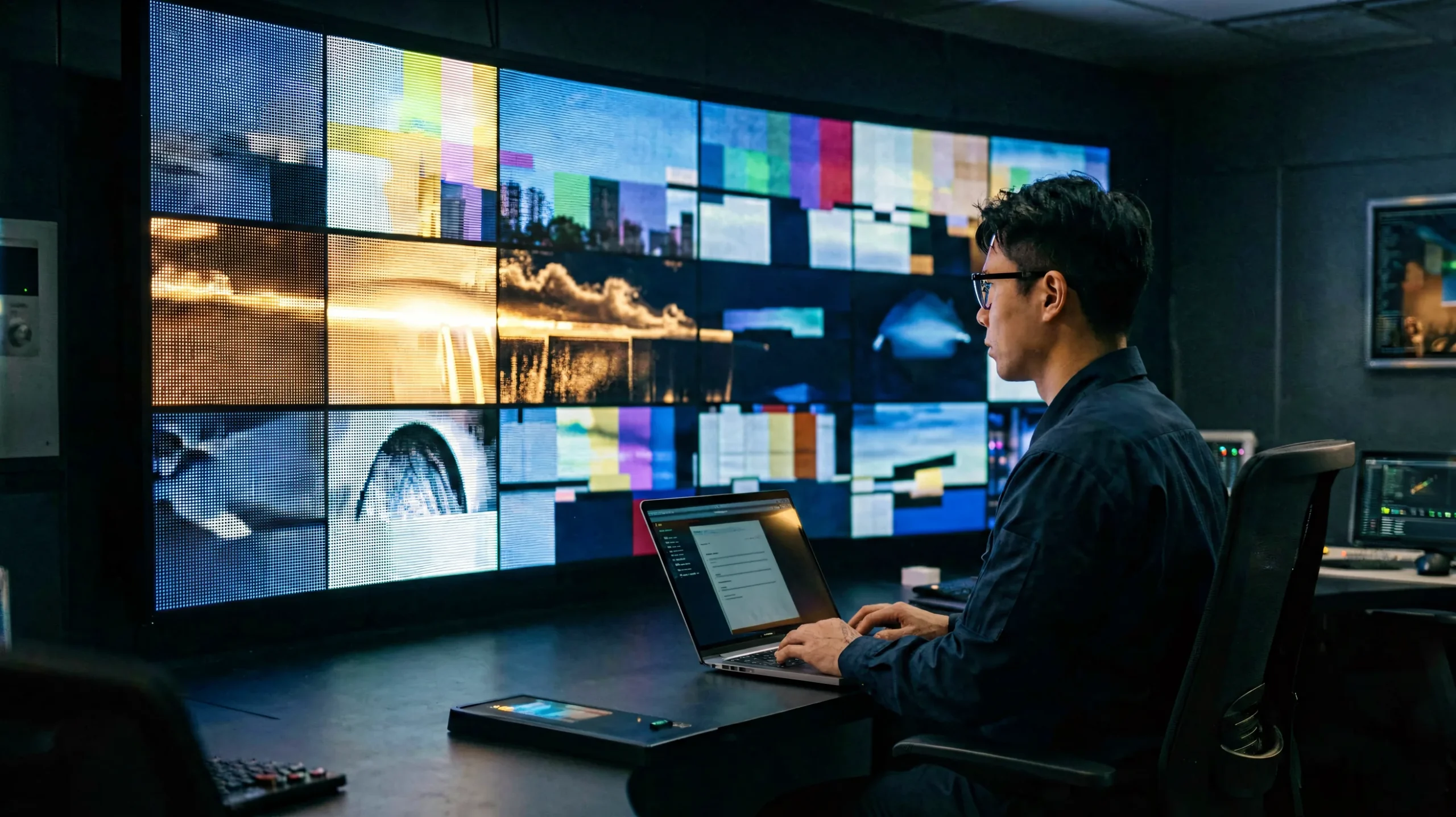
Huidu troubleshooting follows a simple truth: most screen failures come from a small set of predictable causes, and checking them in the right order turns a service call into a ten-minute fix. This guide organizes Huidu LED display faults into seven categories — power, communication, configuration, firmware, passwords and WiFi, content updates, and hardware — with a symptom-to-cause table for each, so a field technician can move from “the screen is not working” to a confirmed diagnosis without guesswork.
Huidu Troubleshooting at a Glance: The Fault Taxonomy
Field experience consistently ranks the failure classes in the same order. As a working probability guide — not a manufacturer statistic — power problems account for roughly a third of service calls, loose cables for about three in ten, incorrect software settings for two in ten, and genuinely faulty hardware for the remainder. The practical consequence: never start a diagnosis at the receiving card when the power supply has not been verified first.
| Symptom | Most Likely Category | First Check |
|---|---|---|
| Screen completely dark | Power | Mains, power cord, PSU output |
| Controller not found in software | Communication | Subnet, firewall, network cable |
| Wrong layout or colors | Configuration | Configuration file, data cables |
| Content distorted or frozen | Content / firmware | Program version, firmware match |
| Cannot connect to WiFi | Password / WiFi | Password table, reset procedure |
| One cabinet or row dead | Hardware | Cables, module, receiving card |
For identifying which controller and card model is inside the cabinet before troubleshooting, see our Huidu controller selection guide.
Power Faults: Screen Dead or Partially Dark
No Power at All
Work the chain from the wall inward: confirm the outlet with a known-good device, verify the mains cable is fully seated at both ends, then measure the power supply output. Huidu controllers and cabinets run from 5V DC rails supplied by internal PSUs, and a silent PSU is the single most common cause of a fully dead screen. For installation-context wiring and structure, our indoor LED screen and outdoor LED display guides document the physical side. A 30-second power cycle of the controller also clears the rare firmware freeze that blocks signal output — a documented first step in vendor troubleshooting guides.
Partial Power
When one cabinet is dark or specific module rows are dead while the rest plays, the fault is local, not systemic: check that cabinet’s PSU and its mains connection first, then its receiving card. A systematic approach — test the dark cabinet’s power input before touching signal paths — avoids disassembling working sections of the screen.
Communication and Network Faults
Controller Not Discovered by HDPlayer
HDPlayer discovers controllers on the local network automatically. If a controller does not appear, the causes are almost always network-layer: PC and controller on different subnets, a firewall blocking the discovery ports, or a failed network cable between them. Verify the PC’s IP address is in the same range as the controller’s, temporarily disable the firewall for the test, and swap the cable. WiFi-connected controllers must be joined to the same network as the PC, or accessed through their own access point.
Cluster Sending Failures
When a cluster push updates some screens but not others, the failed units are usually unreachable rather than faulty: check their network route, their online status in the software, and their firmware version against the updated units. A common root cause is a router change that moved part of the site to a different subnet.
U-Disk Import Failures
U-disk updates fail for predictable reasons: the disk is formatted with an unsupported file system, the exported program was built for a different controller model, or the disk was removed mid-import. Re-export the program from the correct software version, use a FAT32-formatted disk, and wait for the controller’s completion indication before removing it.
Configuration Faults: Wrong Layout, Wrong Colors
Configuration faults produce the most confusing symptoms — content plays, but in the wrong position, wrong colors, or with scrambled regions. They are also the easiest to fix once the mechanism is understood: the controller holds a configuration file that maps its output to the physical modules, and almost every layout fault is that mapping being wrong for the hardware in front of it.
Reloading Configuration Files
If the screen worked before and the layout broke after a card replacement or reset, reload the saved configuration file before touching anything else. The video below shows the reload procedure.
Reading Back Receiving Card Programs
When the fault pattern suggests a receiving card’s parameters were overwritten, read the card’s program back and compare it with the documented values. The video below demonstrates the read-back and update procedure.
Re-running Smart Setting
If the configuration file is missing or was generated for different driver chips, re-run smart setting on one reference cabinet and redistribute the new file. Smart setting is the authoritative fix whenever the physical screen changed — new modules, re-cabled data lines, or swapped cabinets — because the mapping must be regenerated, not guessed. The full configuration workflow lives in our Huidu HDSet software guide.
Firmware Faults and Updates
When Firmware Is the Fix
Some faults present exactly like hardware failures but are firmware defects. A documented example: technicians reporting D16 controllers with screens that would not display properly were advised by Huidu support to update the controller firmware from HDPlayer — and the update resolved the fault. The lesson generalizes: when a controller communicates, powers, and configures correctly but the output remains wrong, check the firmware version against the official release notes for that model before condemning the hardware.
Safe Firmware Update Procedure
Back up the configuration file, download firmware matched to the controller model and driver chip from a verified source such as our Huidu software download center, update over a stable LAN connection, and never interrupt power during the write. After the update, re-verify playback, brightness, and network settings, and keep the previous firmware version recorded in the project log for rollback decisions.
Password and WiFi Faults
Forgotten Password Resets
Huidu controllers ship with publicly documented default passwords, and installations that never changed them are the ones that get locked out later. The verified reset procedures: for the WiFi-enabled cards such as the HD-C16C, power the controller off, press and hold the test button, power on while holding, keep holding for about 10 seconds, then release — Huidu’s official tutorial describes exactly this sequence. The LEDArt mobile app path documented in Huidu’s manual follows the same 10-second hold pattern and restores the WiFi password to its default 88888888.
WiFi Connection Problems
For connection failures, work through the password table first — the full software, hardware, and WiFi password reference with change procedures is in our Huidu HDPlayer setup guide — then check signal level at the controller’s location and the access-point channel congestion. A controller that connects reliably during commissioning but drops later usually has a signal-margin problem, not a fault.
Content Update Faults
Content faults divide into three patterns. Some screens in a cluster fail to update: treat as a network fault and check route and reachability. Content updates but appears distorted: the program was built for a different resolution or color depth than the screen — rebuild it in HDPlayer against the confirmed screen parameters. The clock drifts on a standalone screen: the controller’s time correction function needs re-syncing, and recurring drift points to a failing RTC battery on older hardware. Content and program troubleshooting procedures are covered in the HDPlayer guide linked above.
Hardware Faults: Modules and Cables
Loose Cables
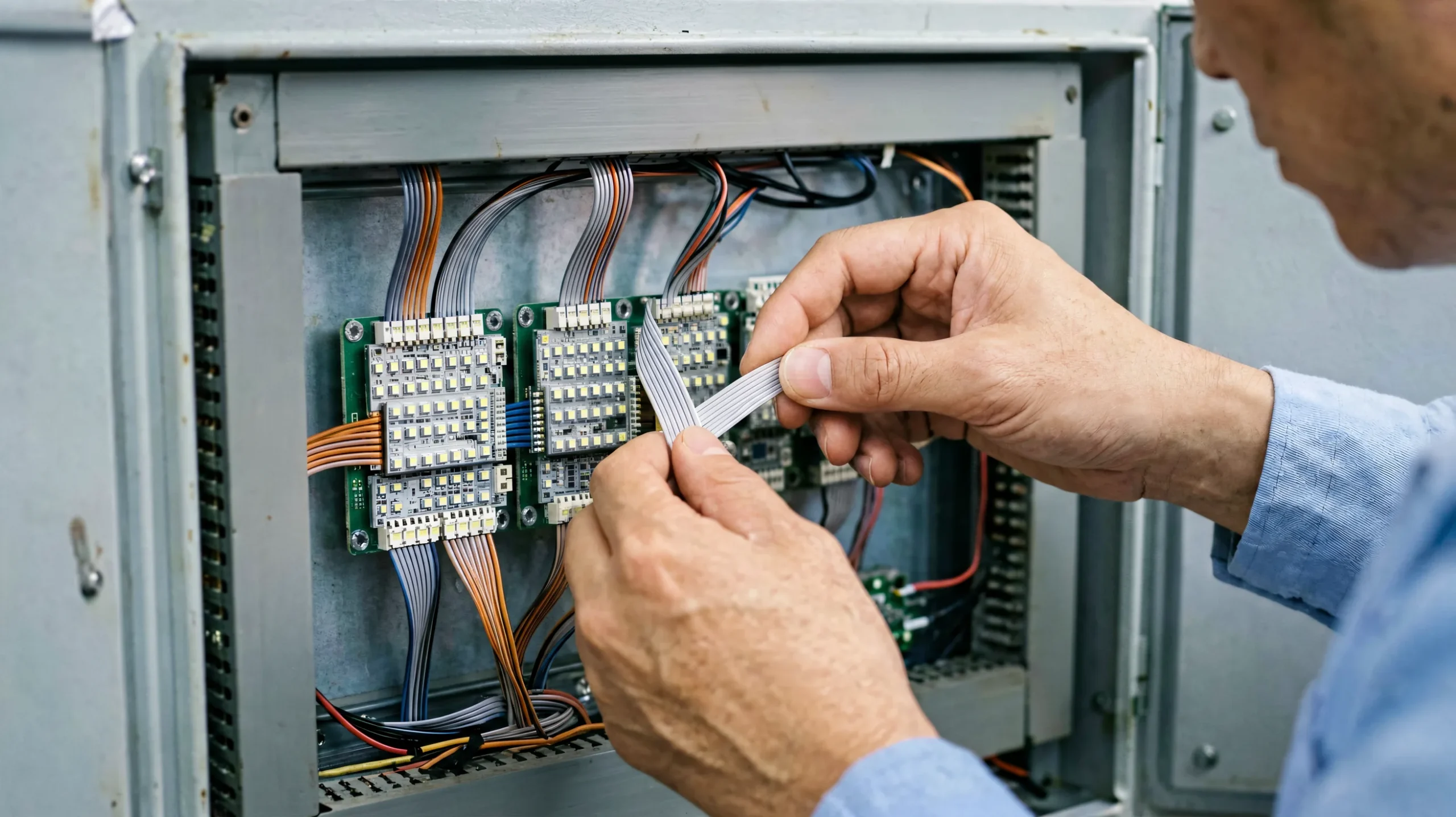
Loose or damaged data and power cables are the second most common fault class after power. The classic signatures: a single module row dark, intermittent flicker that responds to cabinet vibration, or a display that works after physical pressure is applied to a connector. Inspect every connection in the affected path — controller to cabinet, cabinet to cabinet, receiving card to module — before suspecting any electronic component. The video below shows the cabinet-level wiring where these faults live.
Module Faults
A dead module with dark rows across a full module width, with its neighbors working, is usually the module itself or its receiving-card port. Swap the module with a known-good one: if the fault follows the module, replace it; if the fault stays in the cabinet position, move to the receiving card port and the data cable. LED modules are repairable at board level, but for B2B operators the economics usually favor replacement modules kept as spares.
When to Replace vs Repair
As a decision rule: power, cable, configuration, and firmware faults are field-repairable with standard tools; a controller that fails after known-good firmware, correct configuration, and verified power is a candidate for replacement under warranty. For projects where the control system itself is being reconsidered, our Huidu vs NovaStar comparison covers the brand-level decision — and as an LED screen manufacturer we support both ecosystems with documented troubleshooting paths.
FAQ: Huidu Troubleshooting
Why is my Huidu LED display not working?
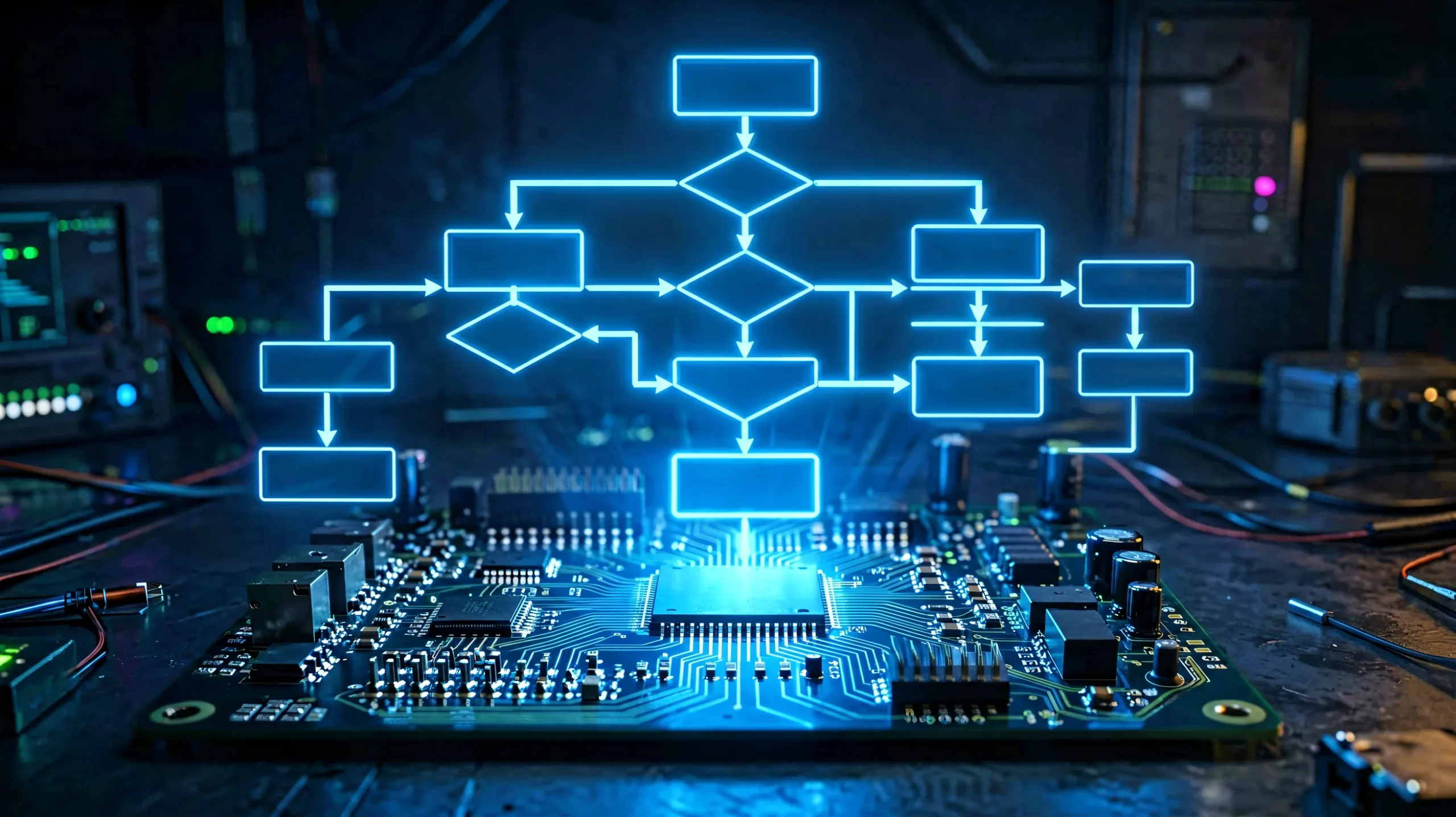
Run the taxonomy in order: verify power at the outlet and PSU, confirm the controller is discovered by HDPlayer, check the configuration file matches the hardware, verify firmware, and only then inspect modules and cables. Most faults resolve in the first three layers.
How do I reset a Huidu controller?
For WiFi cards such as the HD-C16C: power off, press and hold the test button, power on while holding, keep holding about 10 seconds, then release. Huidu’s official tutorial documents this exact sequence.
My Huidu screen shows no picture after a reset — what now?
A reset can clear screen parameters. Reload the saved configuration file through HDSet, or re-run smart setting on one reference cabinet and redistribute the file. If the screen then shows content in the wrong position, the data cable order changed — re-verify it.
Why is my Huidu controller not detected by HDPlayer?
Check the network layer first: PC and controller on the same subnet, firewall not blocking discovery, and a known-good cable. WiFi controllers must share the network with the PC or be reached through their access point.
How do I fix wrong colors or a scrambled layout?
These are configuration faults: reload the saved configuration file, or read back the receiving card program to check for overwritten parameters. If the physical screen changed, re-run smart setting to regenerate the mapping.
What is the default WiFi password of a Huidu controller?
88888888, with lc12345678 used on some models. Change it during commissioning; the full password table is in our HDPlayer setup guide.
How do I update Huidu controller firmware?
Back up the configuration, download firmware matched to the model and driver chip, update from HDPlayer or HDSet over a stable LAN connection, and do not interrupt power during the write.
Why does my screen show only part of the content?
Either the program resolution does not match the screen, or a region of the screen is not receiving signal. Rebuild the program against the confirmed screen parameters, then check the cables and receiving card for the dark region.
My screen stopped updating content — what do I check?
Network route and controller reachability for cluster updates; for U-disk updates, verify FAT32 formatting and that the exported program matches the controller model.
Can a firmware update fix a screen that shows nothing?
Yes — documented field cases exist where a D16 controller displaying nothing was restored by a firmware update through HDPlayer, per Huidu support guidance. Verify power and configuration first, then check the firmware version against the official release notes.
Where can I get Huidu support?
Huidu publishes support contacts through its official service page (email val@huidu.cn and WhatsApp support lines). For displays supplied by LEGIDATECH, our factory support covers the integrated system end to end.
Conclusion
Effective Huidu troubleshooting is a discipline, not a talent: verify power first, communication second, configuration third, firmware fourth, and only then open cabinets. The taxonomy in this guide maps every common failure to its fastest fix — the 10-second reset procedures, the configuration-file reloads, the firmware checks that rescue apparently dead controllers. As an LED screen manufacturer, LEGIDATECH ships Huidu-controlled displays with configuration files, firmware documentation, and wiring diagrams included, and our engineers support field teams through the exact sequences in this guide — so your technicians spend minutes, not days, on the next service call.
Explore the Huidu LED Control System Hub
For the complete Huidu picture — product categories, comparison table, HD-VP series guide, applications, selection logic and FAQs — visit the Huidu LED Control System: Complete Guide & Product Hub.