Mooncell Software Explained: AutoLED, LEDmagic & Server C2 — Download, Setup & Fixes (2026)
Every Mooncell LED display — from a single cabinet to a stadium wall — is configured and driven by one of three free software programs: AutoLED for synchronous screens, LEDmagic for asynchronous players and cloud publishing, and Server C2 for the MC-C2 multimedia server. This guide explains what each program does, where to download it safely, how to set up a screen step by step, and how to fix the ten most common problems installers hit in the field.
Quick answer: if your screen connects to a live video source through a Mooncell processor or sending controller, you need AutoLED. If it plays scheduled content without a PC, you need LEDmagic. If it is driven by an MC-C2 server for multi-screen synchronized shows, you need Server C2. All three are free from the official Mooncell download center.
| Your Hardware | Software You Need | Job It Does |
|---|---|---|
| 2-in-1 processors (MVB series, M40), sending controllers (MTB series), receiving cards (A series) | AutoLED | Screen mapping, module settings, brightness/color calibration, sending configuration files to the hardware |
| Asynchronous players (MB series, MP series), cloud publishing | LEDmagic (desktop + mobile app) | Program editing, scheduling, media library, remote device management |
| MC-C2 multimedia server | Server C2 | Multi-window broadcast control, multi-screen synchronized playback, 8K content |
| All of the above | AutoLED calibration module | Pixel-level brightness and chroma calibration after module repair or replacement |
The Mooncell Software Family at a Glance
AutoLED — Synchronous Screen Configuration
AutoLED is the configuration software for every synchronous Mooncell product: the MVB12E and M40 processors, the MTB400E sending controller, and the A10X / A712 receiving cards. It maps which pixels belong to which cabinet, programs the module scan settings, calibrates brightness and color, and writes the finished configuration into the receiving cards — after which the screen runs standalone without the software.
LEDmagic — Asynchronous Playback & Cloud
LEDmagic is Mooncell’s asynchronous software family: a desktop editor plus a mobile app for managing MB series network media players over LAN, Wi-Fi or the internet. It handles program editing, schedules, media libraries and remote device management — the daily tool of outdoor advertising and digital signage operators who publish content to many screens from one place. Mooncell’s official download center lists it under “Asynchronous software” and “Media Player”.
Server C2 — Multimedia Server Broadcast Control
Server C2 (current release 5.2.5, July 2026) is the broadcast control software of the MC-C2 multimedia server — the platform for synchronized multi-screen shows, KTV and bar scenes, and 8K content playback. Some Mooncell distributors also list a program called M3 Studio for V series splicer control; because it is not currently listed in the official download center categories, confirm the exact software for your hardware on the official page linked below.
How to Download Mooncell Software (Official Sources Only)
Download Mooncell software only from the official Mooncell download center. Third-party “setup bundles” on random download sites frequently package outdated versions, and outdated AutoLED versions are the #1 cause of “software does not recognize the display” faults on newer hardware.
The official download center is organized into four software categories — Software for configuring screens, Asynchronous software, Media Player and Calibration software — plus per-product documentation folders. The configuration category currently lists these releases (as of August 2026):
| Package | Release Date on Official Center | Notes |
|---|---|---|
| Server C2_5.2.5 | 2026-07-13 | MC-C2 server broadcast software |
| AutoLEDSetup V3.115.144 | 2025-07-05 | Current mainstream AutoLED release |
| Autoled 3.7.5 (Multilanguage) | 2024-12-10 | Multi-language build for international projects |
| AutoLED Setup V3.41 (T6 / Two-in-One) | 2024-09-10 | Legacy release for T6-era hardware |
| AutoLED 5.1.3 | 2024-09-10 | Newest major line |
| T6 Controller v3.1.26 | 2024-09-12 | Legacy T6 control software |
Mooncell keeps multiple AutoLED versions available because different hardware generations use different releases. Match the version to your hardware generation — or better, ask the supplier who configured your screen which version was used, and stay on it.
AutoLED Setup Workflow, Step by Step
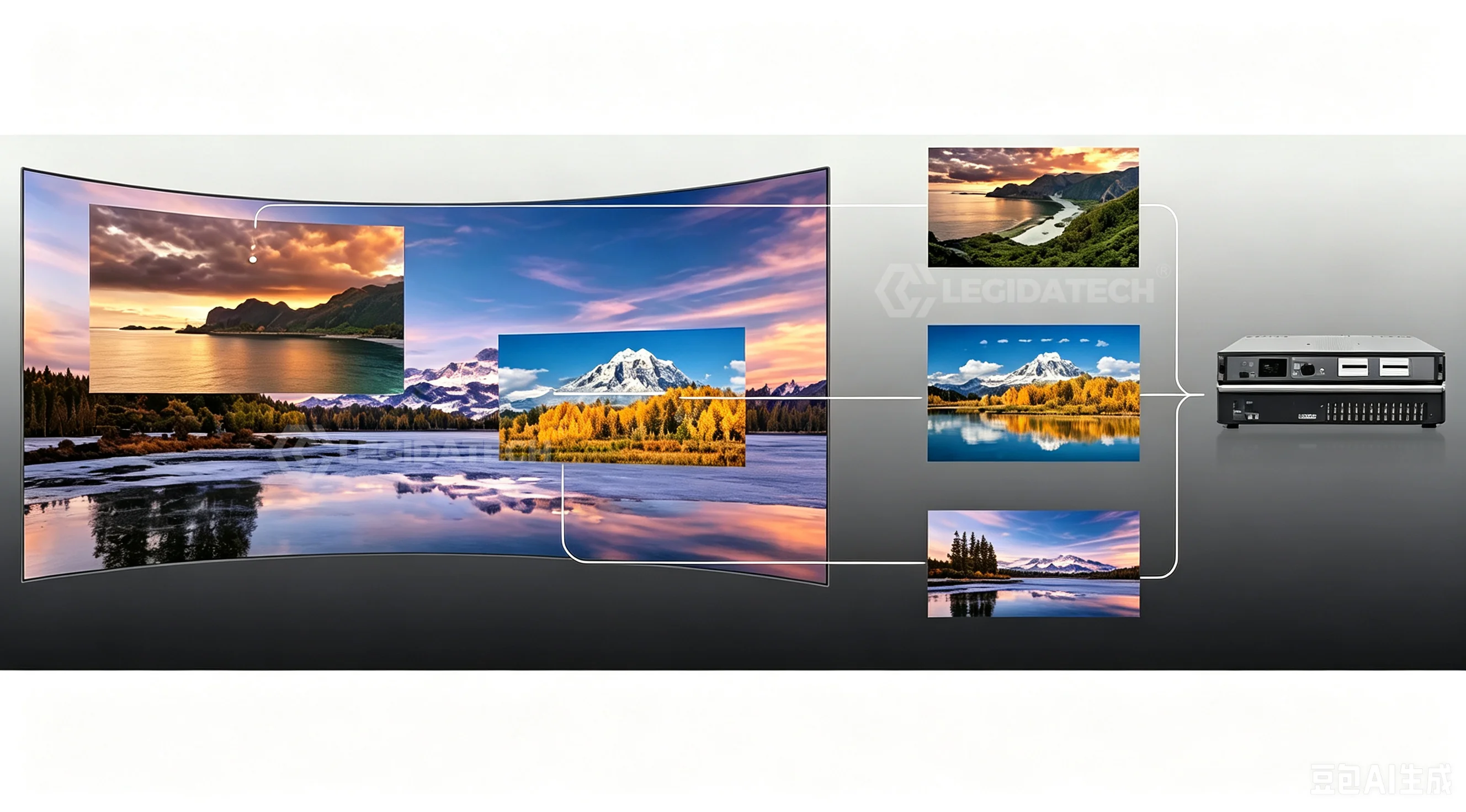
The standard Mooncell synchronous signal chain: video source → processor/sending controller → receiving cards → modules. AutoLED configures the receiving cards at the end of this chain.
A typical first configuration takes about 30 minutes once you know the steps:
- Install and connect. Install AutoLED on a Windows PC (the official packages are .exe installers). Connect the PC to the sending controller’s USB port and the controller to the cabinets via Gigabit Ethernet, in daisy chain. Power the screen last.
- Read the existing configuration (if any). For a used or pre-configured screen, read the configuration back from the receiving cards first — this shows you exactly what is stored. Watch our one-minute NovaLCT read-back video in the comparison guide for the same workflow; AutoLED’s read-back works the same way.
- Smart module settings. AutoLED’s “smart settings” wizard detects the module’s driver IC, scan mode, data groups and pinout — usually automatically. For mixed-IC cabinets this is the step that saves hours compared with manual mapping.
- Screen connection mapping. Set the cabinet layout (width × height in cabinets, port by port) so AutoLED knows which cabinet is where. This is where the controller setup sequence we documented for NovaLCT/LEDVISION applies to AutoLED as well: port 1 → first cabinet in the chain, and so on.
- Brightness and color. Adjust global brightness to the environment, then run AutoLED’s calibration module if you have a calibration file from the factory. New Mooncell cards like the A10X store pixel-level calibration data on the card itself.
- Send and verify. Send the configuration to the receiving cards and wait for completion — do not close the software or unplug cables mid-transfer. Then test with a gradient and a moving white bar: color blocks or seams mean a mapping or module-settings problem, which the troubleshooting table below covers.
A quick walkthrough of AutoLED’s interface — including the multi-window tools used for screen mapping.
Connecting an LED screen to AutoLED from scratch — cable order and first configuration.
LEDmagic & Asynchronous Players
Asynchronous Mooncell players — the MB series boxes and MP series cloud players — run without a PC. Content is edited in LEDmagic on a computer, then pushed to the player over LAN, USB or the cloud, and the player drives the screen 24/7. The LEDmagic mobile app (available on the Apple App Store) gives operators remote screen management, program editing and media library control from a phone.
This is the architecture behind most outdoor LED displays and retail networks: one operator, many screens, no PCs on site. Mooncell’s own tutorial covers the full async workflow:
Mooncell’s official asynchronous product usage guide — MB series setup, LEDmagic editing and publishing.
For special-shape projects, the MB400S and B1200S controllers extend the same async workflow to irregular screens — rings, stairs, custom shapes — with the geometry handled in the controller rather than in the content.
Server C2 & the MC-C2 Multimedia Server
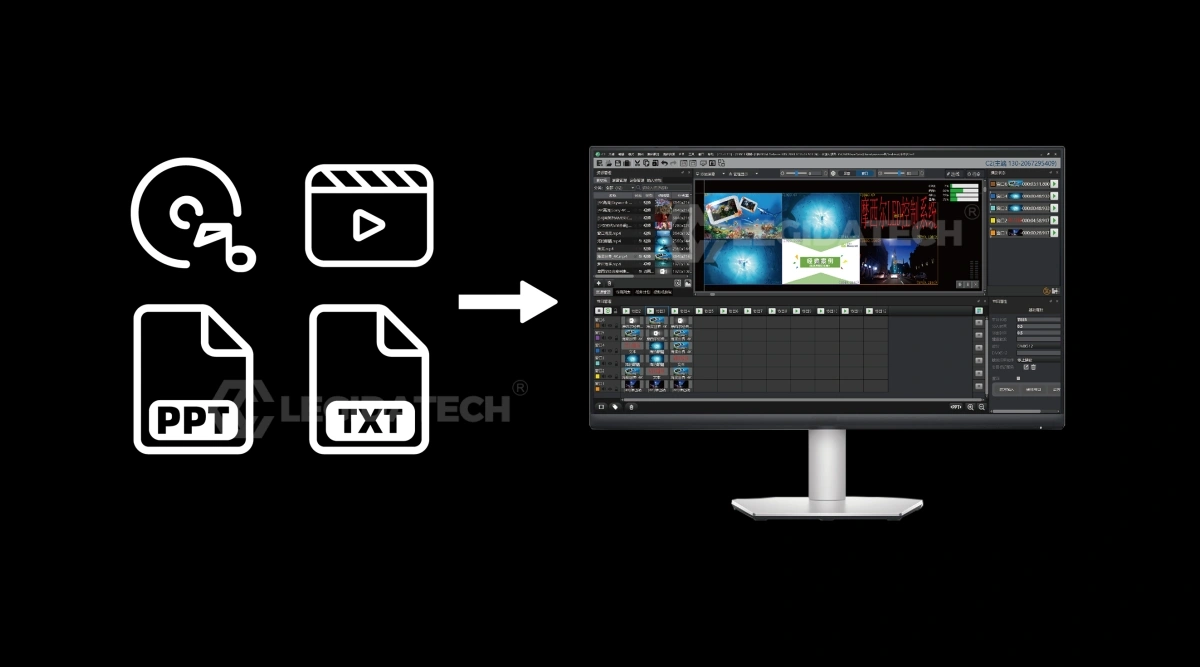
Server C2 (v5.2.5) — the broadcast control software that runs the MC-C2 multimedia server.
When a project needs synchronized multi-screen playback — a KTV chain, a bar with ceiling + wall screens, a broadcast-style show wall — the Mooncell MC-C2 plus Server C2 replaces the PC stack. Server C2 manages the playlist windows, scene switching and synchronized playback across every screen connected to the server, with 8K hardware decoding. If you are specifying a project like this, tell us the screen layout early: window zoning in Server C2 is set up around the physical screen plan.
Common Mooncell Software Problems & Fixes
These ten faults account for the large majority of field calls we support. They are listed by symptom, with the cause we most often find and the fix:
| # | Symptom | Most Common Cause | Fix |
|---|---|---|---|
| 1 | Screen goes black after sending data | Configuration file partially written (PC/controller disconnected mid-transfer) | Re-send and wait for the completion prompt; do not unplug cables or close AutoLED during transfer |
| 2 | Screen flickers or trips protection | Poor Gigabit cable contact or wrong module scan settings | Re-seat the Ethernet cable, check the power budget of the cabinet, re-run smart module settings |
| 3 | Software does not recognize the LED display | AutoLED version does not match the hardware generation | Confirm which version your supplier used and install that release from the official download center |
| 4 | Transmission interruption / loading failure | Cable length or daisy-chain order problem | Keep Gigabit runs within spec, verify port-to-cabinet mapping matches the chain order |
| 5 | Local area missing or color blocks | Screen-connection mapping error on one port | Correct the cabinet layout for that port in AutoLED and re-send |
| 6 | Color distortion or uneven brightness | Lost calibration data (after module repair) or wrong gamma | Re-run calibration or re-import the factory calibration file; check RGB gamma settings |
| 7 | Some panels run a few frames behind | Mixed refresh settings across cabinets | Unify the refresh rate and scan settings for all cabinets in the same wall |
| 8 | Configuration lost after module replacement | New module has different IC or scan order | Re-run smart module settings for the replaced module only, then re-send |
| 9 | USB port not detected on the PC | Driver or cable issue on the PC side | Use the data USB port (not the debug port), try a different cable/PC, reinstall AutoLED |
| 10 | Everything works in test but fails in production | Player schedule or content format mismatch | Check the player clock/time zone, content resolution vs player capacity, and schedule overlap in LEDmagic |
Which Software for Which Project
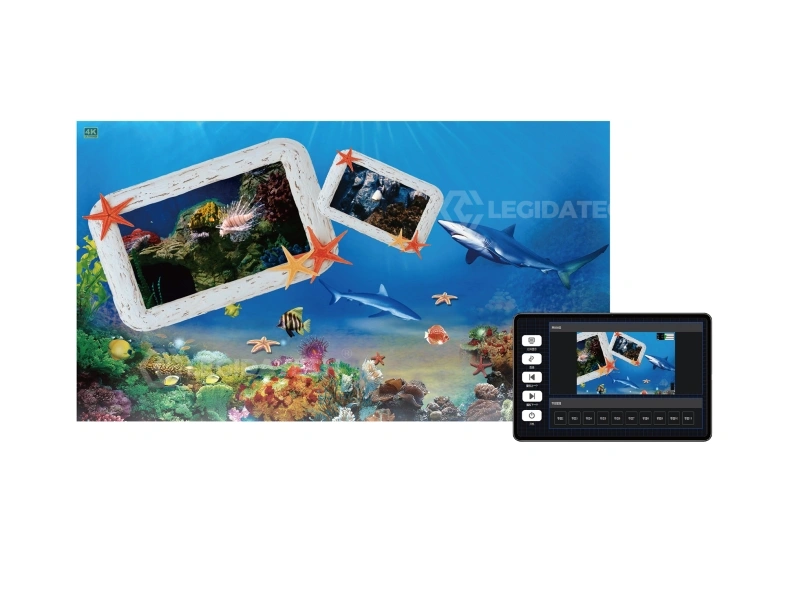
A typical Server C2 application: synchronized wall and ceiling screens in a bar environment.
- Fixed indoor or outdoor wall with a live source → AutoLED once at commissioning, then the screen runs without software. See our indoor LED screens range.
- Rental and stage → AutoLED for mapping on site; screens are re-mapped per event layout. See rental LED display.
- Digital signage / advertising network → LEDmagic + MB/MP players, scheduled publishing, remote management. See LED posters and all-in-one displays.
- Multi-screen synchronized show → MC-C2 + Server C2.
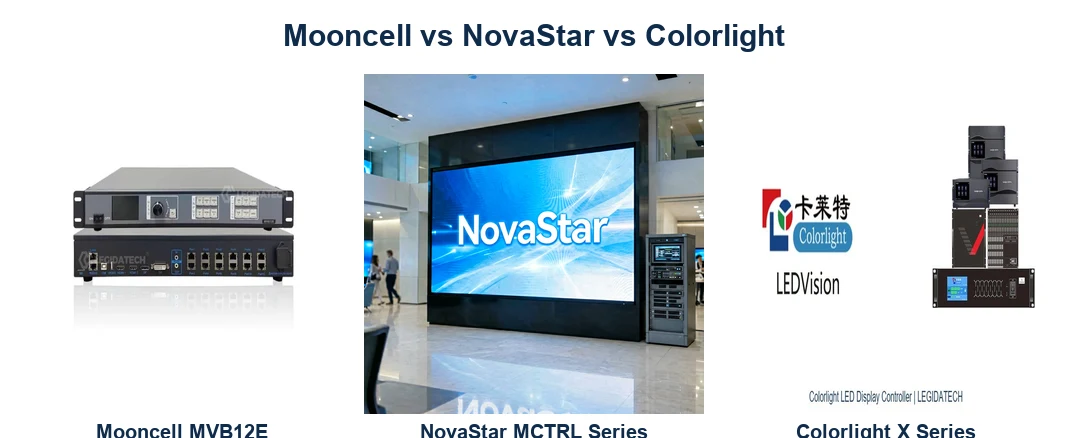
- Choosing the hardware behind the software → see our Mooncell vs NovaStar vs Colorlight comparison, and for the Huidu software family the parallel guide Huidu HDSet software guide.
How We Use Mooncell Software at the Factory
As an LED display factory, we run AutoLED and LEDmagic on every Mooncell-based system before it leaves our floor: module mapping, calibration and a full burn-in with the customer’s actual content settings. Our customers receive the screen with the control system already configured — the software work is done before the container ships, and our 24-hour remote support team can walk any local technician through field changes using exactly the steps in this guide. If your project runs Mooncell software, you are never alone with a configuration file at 2 a.m.
FAQ: Mooncell Software
Is Mooncell software free to use?
Yes. AutoLED, LEDmagic and Server C2 are free downloads from the official Mooncell download center, with no license fees for standard configuration and playback. The same is true for the LEDmagic mobile app.
Where can I download AutoLED?
Only from the official download center, under “Software for configuring screens”. Avoid third-party download sites — we regularly fix screens that fail because a technician installed an outdated or repackaged AutoLED from an unofficial source.
What is the difference between AutoLED and LEDmagic?
AutoLED configures synchronous hardware — processors, sending controllers and receiving cards — and is used mainly at commissioning. LEDmagic is the day-to-day operation software for asynchronous players: content editing, schedules and remote management without a PC on site.
Which AutoLED version should I use?
The version your hardware generation was configured with. Mooncell maintains several releases (3.7.5 multilanguage, V3.115.144, 5.1.3) because hardware generations use different builds. If you buy a complete system from us, it arrives configured with the correct version — and we record which one in the handover documents.
Is LEDmagic available as a mobile app?
Yes. LEDmagic is available as a mobile app (Apple App Store) for managing Mooncell network media players remotely, alongside the desktop editor from the official download center.
Can AutoLED control NovaStar or Colorlight hardware?
No. Each control system is a closed ecosystem — Mooncell software talks to Mooncell hardware only, exactly as NovaLCT is NovaStar-only and LEDVISION is Colorlight-only. This is a key factor in the Mooncell vs NovaStar vs Colorlight comparison brand decision.
What is Server C2 used for?
Server C2 is the broadcast control software of the MC-C2 multimedia server: multi-window playback, synchronized multi-screen shows and 8K content management. Current official release: 5.2.5.
Can I run Mooncell software on a Mac?
The official AutoLED and Server C2 packages are Windows executables. On Mac hardware, run them in a Windows environment (Boot Camp or a virtual machine). The LEDmagic mobile app covers iOS/Android for player management.
My screen worked yesterday and is black today — where do I start?
Start with power and cables (90% of sudden failures), then the sending controller’s status LEDs, then re-send the configuration in AutoLED. Work through items 1, 2 and 4 in the troubleshooting table above, in that order.
Does LEGIDATECH provide Mooncell software support?
Yes — as part of every complete LED display system we ship: pre-configured software, handover documentation with the exact AutoLED version used, and 24-hour remote support for the life of the screen. Contact us through the About Us page with your project details.
Sources & References
- Mooncell official download center
- Mooncell download center — Software for configuring screens (AutoLED / Server C2 version list, retrieved 2026-08-17)
- Mooncell download center — Asynchronous software
- Mooncell official tutorial videos
- Mooncell MC-C2 series official page (Server C2 broadcast software)
- Mooncell MP series official page (LEDmagic cloud players)
- Mooncell MVB series official page
Explore the Mooncell LED Control System Hub
For the complete Mooncell picture — product overview, comparison table, applications, selection logic and FAQs — visit the Mooncell LED Control System: Complete Guide & Product Hub.